


Introduction
A computer that takes several minutes to start can quickly become frustrating, especially when you need to begin work, study, or entertainment without waiting. A slow startup can happen for many reasons, including too many startup applications, insufficient storage, outdated drivers, background processes, malware, or an aging hard drive. Fortunately, most startup problems can be improved with a few practical changes. Understanding how to fix slow startup Windows does not require advanced technical knowledge in most cases. Windows includes several built-in tools that can help identify applications and services affecting boot performance. By reviewing these settings carefully and keeping the system maintained, you can often reduce startup time and make your computer feel more responsive immediately after turning it on.
Why Does Windows Start Slowly?
Windows startup involves loading the operating system, hardware drivers, security software, background services, and applications configured to launch automatically. When too many programs attempt to start simultaneously, the computer has to process a large amount of information before becoming fully usable. Older computers can experience this problem more severely because traditional hard disk drives are slower than modern solid-state drives.
Another common cause is limited free storage. Windows needs available space for temporary files, updates, caches, and system operations. Outdated software and drivers can also interfere with startup performance. In some cases, unwanted programs may run automatically in the background. Therefore, knowing how to fix slow startup Windows begins with identifying what is actually causing the delay instead of randomly changing system settings.
Check Startup Apps in Task Manager
One of the easiest solutions is reviewing applications that automatically launch when Windows starts. Many programs add themselves to the startup list during installation. Some are useful, but others are unnecessary and simply consume memory and processing power.
Press Ctrl + Shift + Esc to open Task Manager, then select Startup apps. You will see applications that launch during startup along with their startup impact. If you rarely need a particular application immediately after signing in, you can disable its automatic startup.
Be careful with essential Windows components, security applications, audio drivers, graphics software, and hardware utilities. If you do not recognize a program, research its purpose before disabling it. Reducing unnecessary startup applications is one of the most effective answers to how to fix slow startup Windows problems.
Free Up Storage Space
A nearly full system drive can contribute to poor Windows performance. Temporary files, old update packages, browser caches, downloads, and unused applications can gradually consume storage space.
Windows provides built-in storage management features that make cleaning unnecessary files relatively simple. Open Settings > System > Storage and review the categories consuming the most space. Temporary files can often be removed safely after checking what Windows has selected.
Uninstall applications that you no longer use, and move large personal files such as videos and photographs to another drive or reliable cloud storage when appropriate. Keeping reasonable free space on the Windows drive can help the operating system manage temporary operations more efficiently.
Keep Windows and Drivers Updated
Operating system and driver updates can improve compatibility, stability, security, and performance. If your computer has not been updated for a long time, outdated components may contribute to startup problems.
Open Settings > Windows Update and check for available updates. Also check for appropriate updates for important hardware such as graphics, network, chipset, and storage components. Drivers should preferably come from the computer manufacturer’s official support software or the hardware manufacturer’s trusted source.
Updates do not always make startup dramatically faster, but they can resolve bugs and compatibility issues. If you are learning how to fix slow startup Windows performance, keeping the operating system and drivers maintained should be part of your regular routine.
Scan for Malware and Unwanted Programs
Malware can cause many performance problems, including unusually slow startup. Some unwanted programs may launch automatically and consume system resources as soon as Windows loads.
Use Windows Security to perform a security scan. Open Windows Security > Virus & threat protection and choose an appropriate scan option. A full scan can take longer, but it provides a more comprehensive check.
Avoid downloading questionable optimization tools that promise instant performance improvements. Some third-party applications add additional background services and advertisements, potentially making the problem worse. A trusted security solution and careful software installation habits are generally more useful for maintaining a healthy computer.
Disable Unnecessary Background Applications
Some applications continue running background processes even when you are not actively using them. Messaging applications, cloud synchronization tools, game launchers, and productivity software may all consume resources.
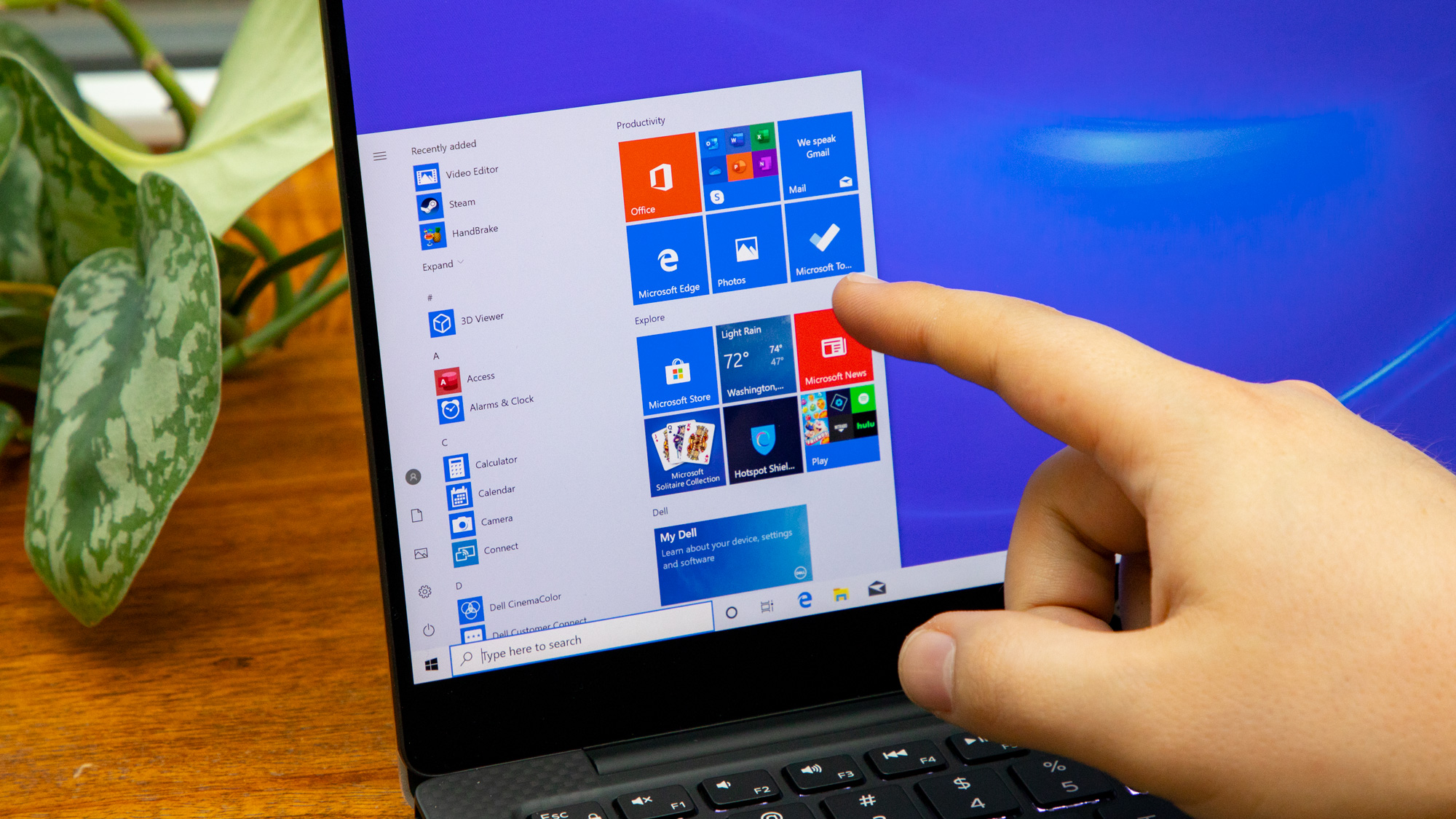 Windows allows users to control which applications can operate in the background, depending on the application and Windows version. Review applications you do not need running continuously and adjust their permissions where appropriate.
However, background activity is not always bad. Cloud synchronization, security software, backup services, and other important applications may need to remain active. The goal is not to disable everything but to reduce unnecessary resource usage. This balanced approach is important when learning how to fix slow startup Windows systems without creating new problems.
Use an SSD Instead of an Old Hard Drive
Hardware can have a major effect on startup speed. If your computer still uses a traditional mechanical hard disk drive, upgrading to a solid-state drive can produce a significant improvement in boot times and general responsiveness.
An SSD has no spinning mechanical platters, allowing it to access files much faster than a traditional HDD. Windows can therefore load system files and applications more quickly.
Before upgrading, check your computer’s compatibility and determine whether the storage drive can be replaced or whether an additional drive can be installed. If you are uncomfortable opening the computer or migrating Windows, professional assistance may be useful. For older computers, an SSD upgrade can often provide a more noticeable improvement than software tweaks alone.
Compare Common Startup Problems
| Problem | Possible Effect | Recommended Action |
|---|---|---|
| Too many startup apps | Longer boot time | Disable unnecessary apps |
| Low storage space | Slower overall performance | Remove temporary and unused files |
| Old HDD | Slow Windows loading | Consider an SSD upgrade |
| Outdated drivers | Startup delays or instability | Install appropriate updates |
| Malware | High resource usage | Run a security scan |
| Too many background processes | Increased memory usage | Limit unnecessary background activity |
| Old Windows installation | Performance issues | Keep Windows updated |
Clean Up Unused Applications
Installed programs can consume more than storage space. Some applications add services, scheduled tasks, or startup entries that continue operating after installation.
Open Settings > Apps > Installed apps and review the software on your computer. Remove applications that you no longer need, particularly programs that you installed temporarily and forgot about.
Do not remove system components simply because you do not recognize their names. Some programs support hardware, Windows features, or other applications. When uncertain, identify the program before uninstalling it. Regular software maintenance can reduce clutter and help keep your computer organized.
Check Fast Startup Settings
Windows includes a feature called Fast Startup that can reduce boot time by saving certain system information when the computer shuts down. On compatible systems, this feature can make startup faster.
You can find the setting through Control Panel > Hardware and Sound > Power Options > Choose what the power buttons do. If the Fast Startup option is available, check whether it is enabled.
Fast Startup does not solve every startup problem, and some systems may behave differently depending on hardware and configuration. If you experience unusual boot or shutdown behavior, investigating Fast Startup settings can be worthwhile. It is another option to consider when looking at how to fix slow startup Windows performance.
Restart Your Computer Regularly
Modern Windows computers can remain active for long periods, especially when users rely on sleep mode instead of completely restarting the system. Although sleep is convenient, a full restart can clear temporary processes and refresh system resources.
If your computer has become unusually sluggish, save your work and restart it. After restarting, check whether startup performance improves. If the computer repeatedly becomes slow after several days, investigate background applications, updates, storage usage, and other potential causes.
A restart is not a permanent solution to serious startup problems, but it is a simple troubleshooting step that can reveal whether temporary processes are contributing to the issue.
Additional Tips to Improve Startup Speed
A few simple habits can help maintain faster startup performance over time:
- Keep unnecessary startup applications disabled.
- Maintain adequate free space on the Windows drive.
- Install Windows and important driver updates regularly.
- Remove software you no longer use.
- Run periodic security scans.
- Avoid installing unknown optimization programs.
- Consider upgrading from an HDD to an SSD.
- Keep important files backed up before making major system changes.
These practices work best when combined rather than treated as individual magic fixes. Startup performance depends on the computer’s hardware, Windows configuration, installed applications, and overall system condition.
When Should You Consider Professional Help?
If Windows remains extremely slow after basic troubleshooting, the problem may involve hardware failure, damaged system files, storage health, overheating, or another deeper issue. Frequent crashes, unusual noises from a mechanical drive, repeated boot failures, or unexpected shutdowns should not be ignored.
Before making major changes, create a backup of important files. If the computer contains valuable work or personal data, professional assistance can help prevent accidental data loss. In some cases, a clean Windows installation may improve performance, but it should be considered carefully because reinstalling Windows can remove applications and potentially affect personal data.
Conclusion
A slow Windows startup does not always mean that you need a new computer. In many situations, unnecessary startup applications, limited storage, outdated software, background processes, or an aging hard drive are responsible for the delay. The best approach is to identify the cause and then apply the appropriate solution. Disabling unnecessary startup programs, cleaning storage, updating Windows, scanning for unwanted software, and maintaining your applications can provide noticeable improvements. If the computer still uses an old mechanical drive, upgrading to an SSD may offer an even greater performance boost. By following these practical methods, you can understand how to fix slow startup Windows problems and create a faster, more efficient startup experience.